
Screenshot from the keyboard. Never leave the page.
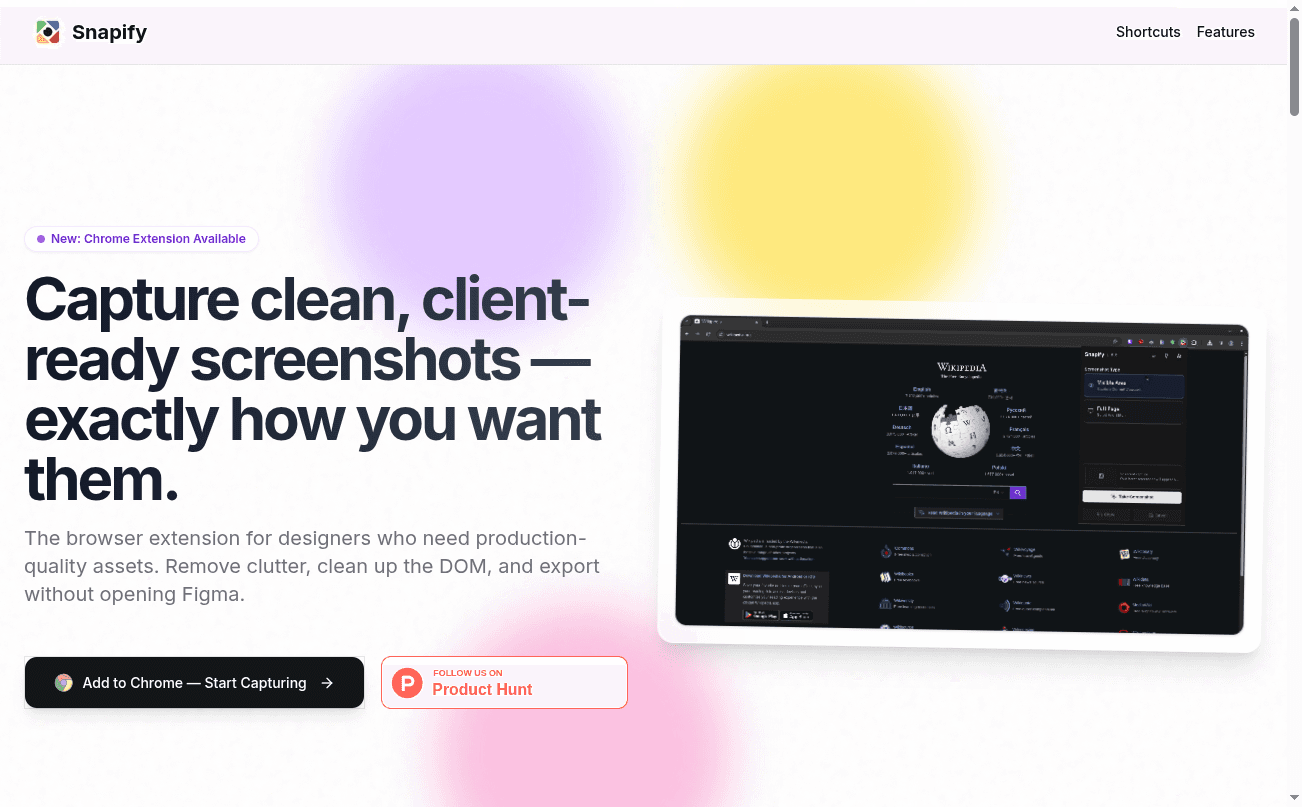
Snapify keybinds fire the same capture engine as the popup. Visible, full page, or a drawn region — without hunting the toolbar, without waiting on a panel.
What a keybind is
A keybind is a browser-owned shortcut that talks to Snapify while you are still in the tab. The page stays focused. The popup never has to open. That is why selected-area capture works from a shortcut: drawing on the page does not kill the tool.
Chrome and Edge let an extension suggest four shortcuts. Snapify uses three of them for capture. Element exclusion stays in the Exclude tab — it is a picking session, not a one-shot capture.
What you can fire
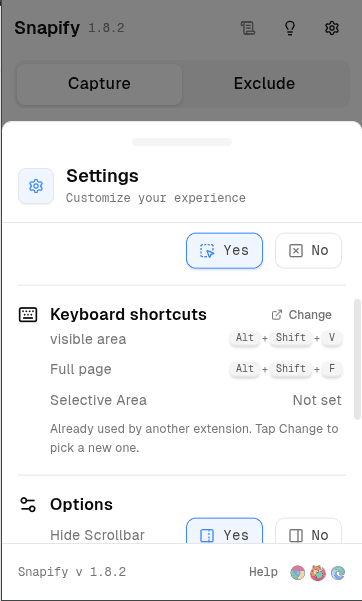
Defaults below. On Mac, Alt is Option. If a row says Not set in Snapify settings, the browser never assigned it — remap it.
Visible area
Grabs exactly what is on screen. Use it when the viewport is already the shot.
Mac Option + Shift + V
Full page
Scrolls and stitches the whole document, including nested dashboards. Stay on the tab; Snapify does the walking.
Mac Option + Shift + F
Selected area
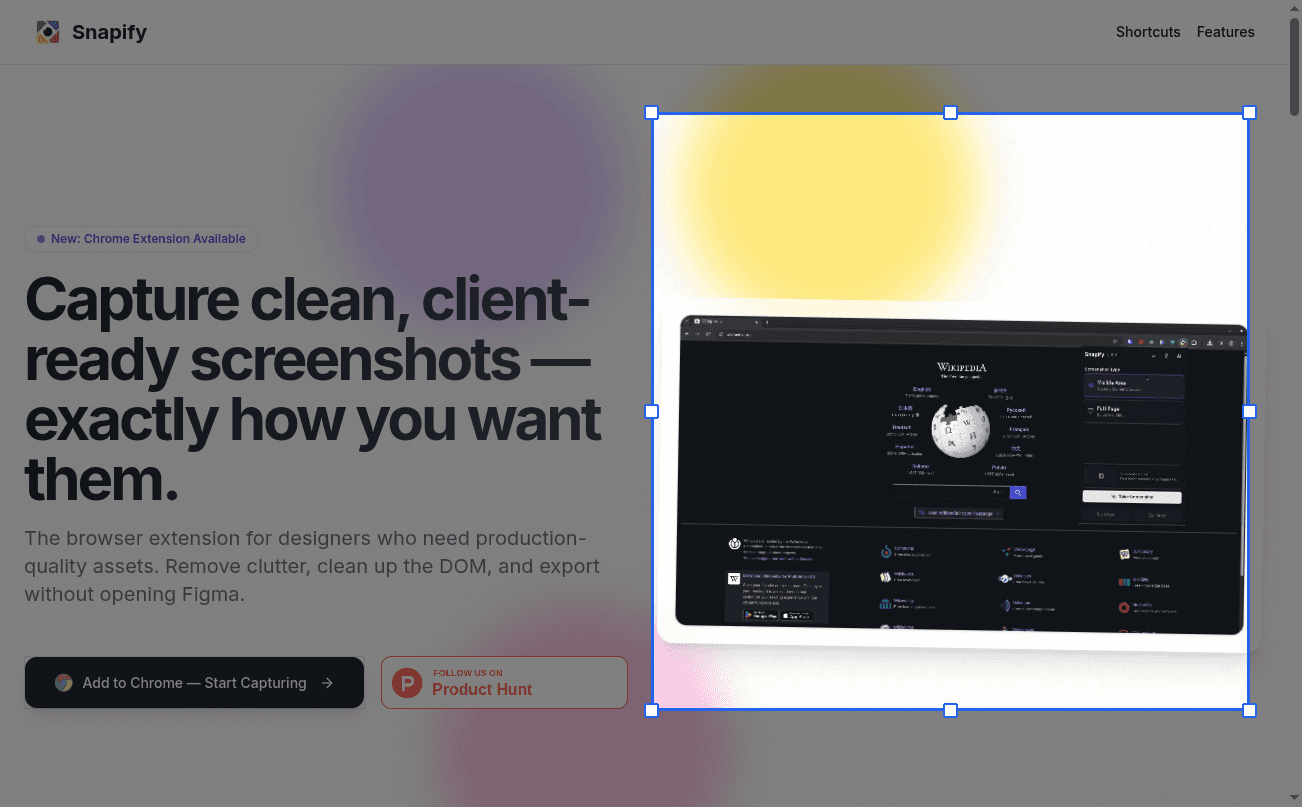
Draws the crop overlay on the page. No popup to close, no race with the click.
Mac Option + Shift + A
Stay in the work
The old loop is click the puzzle piece, wait for the panel, click Capture, lose the hover state you cared about. A keybind cuts that loop to one chord.
Visible area
Grabs exactly what is on screen. Use it when the viewport is already the shot.
Full page
Scrolls and stitches the whole document, including nested dashboards. Stay on the tab; Snapify does the walking.
Selected area
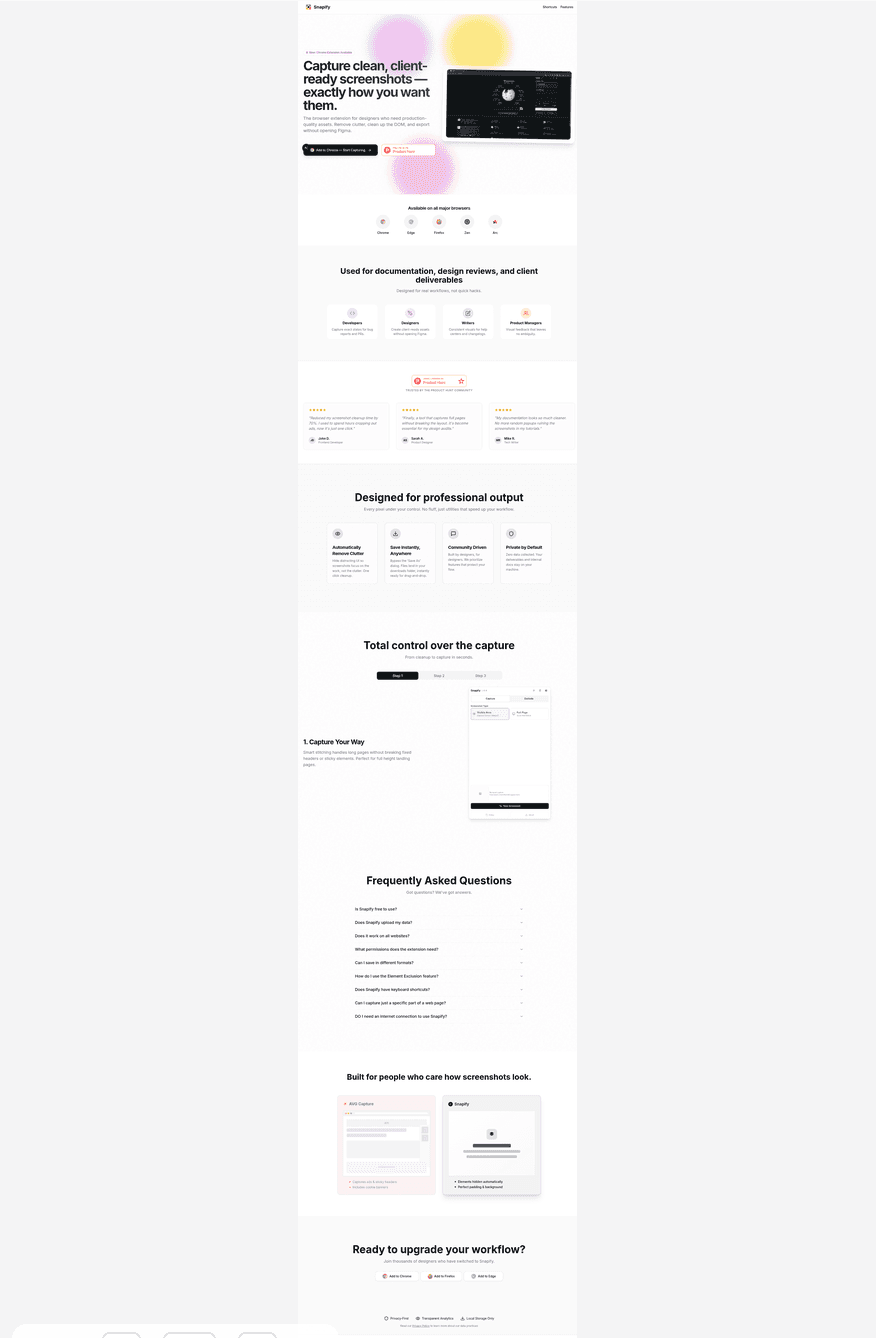
Draws the crop overlay on the page. No popup to close, no race with the click.
How to change them
Browsers own the keys, not Snapify. We suggest defaults. You keep the last word so they match the rest of your muscle memory.
Step 1
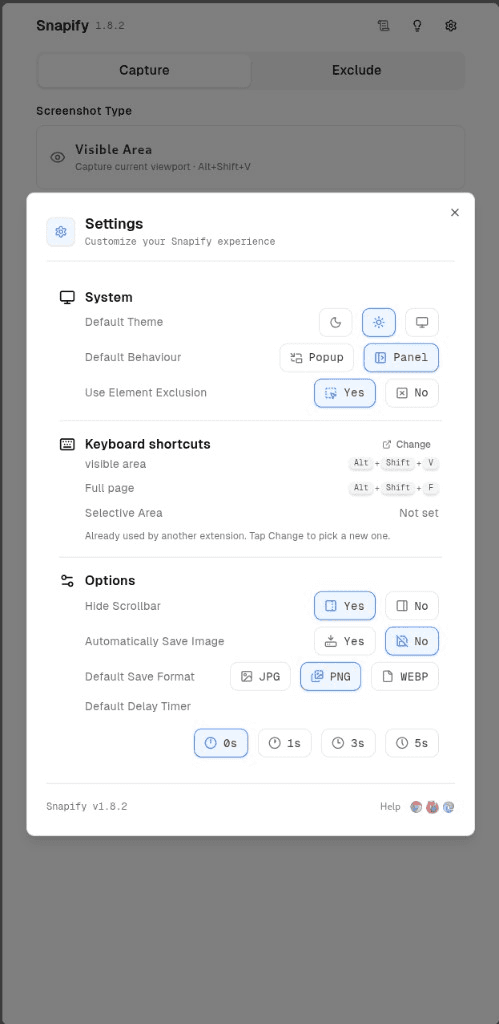
Open Snapify settings
Click the Snapify icon, then Settings. The Keyboard shortcuts section lists each bind and whether the browser actually assigned it.
Step 2
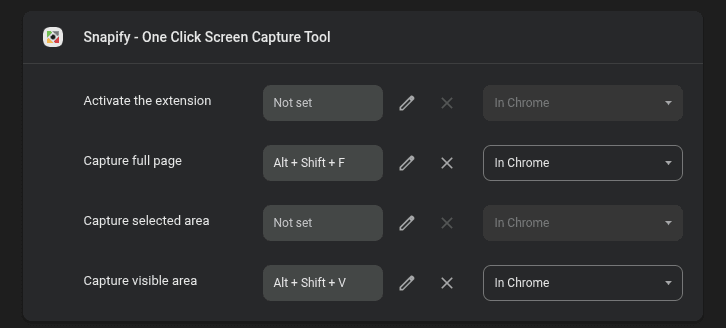
Change them in the browser
Use Change shortcuts. Chrome and Edge open the extension shortcut page. Firefox opens Add-ons. If a combo shows Not set, another extension already owns it — pick a free one.
If nothing happens when you press the keys
- Open Snapify Settings. If the bind says Not set, Chrome never registered it. Reassign it.
- Reload the tab after installing or updating Snapify. Full page and selected area need the content script on that page.
- chrome:// and the Web Store are blocked by the browser. Shortcuts cannot capture those surfaces.
Ready to upgrade your workflow?
Join thousands of designers who have switched to Snapify.


Read our Privacy Policy to learn more about our data practices