
How to screenshot a file on your computer
If you opened a photo or HTML file from Downloads, the address bar starts with file://. Chrome will not let Snapify see that page until you turn on Allow access to file URLs. One switch, then reload the file once.
1. Click Open extension settings
Open the file, then click the Snapify icon. When you see “Local files need a one-time permission,” click the black button Open extension settings. A Chrome page for Snapify opens. That page is where the switch lives — not inside the popup.
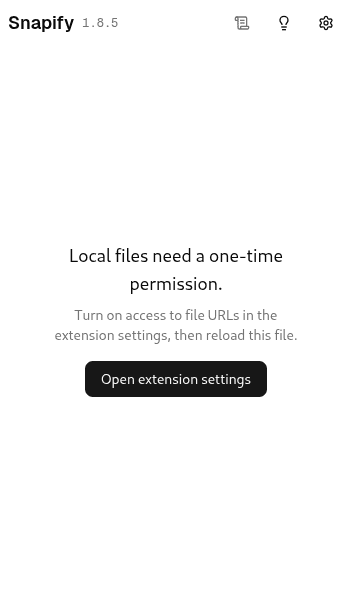
This is the popup. Click the black button. 2. Turn on Allow access to file URLs
On that settings page, scroll to the bottom. The last row is Allow access to file URLs. Turn it on. Grey is off. Blue is on. Leave Pin to toolbar and Allow in Incognito alone — they are not this permission.
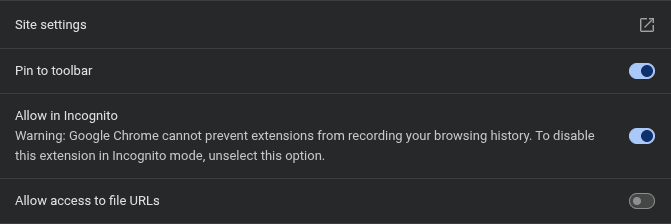
Off. The last switch is grey — Snapify still cannot open file:// pages. 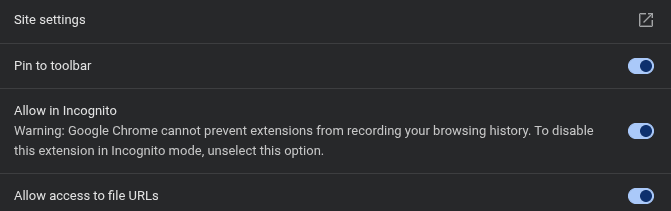
On. The last switch is blue. This is the only change you need. 3. Reload the file tab
Go back to the tab with your file — not the settings tab. Open Snapify again. You should see a yellow bar: “This page was open before Snapify was ready.” Click Reload Page. The file was already loaded before Chrome granted access, so it needs one refresh.
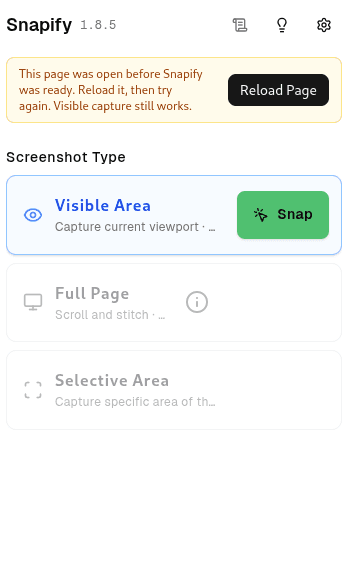
Click Reload Page in the yellow bar. Visible Area still works without this; full page does not. 4. Take the screenshot
After the reload, Snapify works on that file the same as on a website. You will not see the permission screen again in this browser. Other local files do not need the switch flipped a second time.
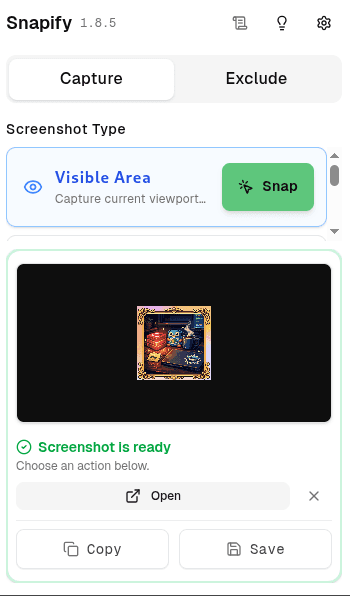
When this appears, the permission worked.
If it still does not work
- The address bar must start with
file://. A file opened from a website is already allowed. - The last switch on the Snapify settings page must be blue. Reloading settings does not grant access — only that switch does.
- Reload the file tab, not chrome://extensions. The yellow bar only appears on the file.
Firefox
Open about:addons, select Snapify, and allow access to file URLs. Then reload the file tab once, same as Chrome.
Questions
- Why can’t Snapify screenshot a file I opened from my computer?
- Chrome and Edge block extensions on file:// pages until you turn on Allow access to file URLs for Snapify. It is a browser setting, not a Snapify install option.
- Where is Allow access to file URLs?
- In the Snapify popup, click Open extension settings. On the page that opens, the last row is Allow access to file URLs. Turn that switch on (blue). Pin to toolbar and Allow in Incognito are different settings.
- I turned the switch on and Snapify still cannot capture.
- Go back to the file tab (the one whose address starts with file://) and click Reload Page in Snapify. The tab was open before the permission existed, so it needs one refresh. Reloading the settings page does nothing.
- Do I have to do this for every file?
- No. Once the switch is on, Snapify can capture other local files in that browser. You only reload a tab that was already open before you flipped it.